2.1 IoT Analytics S3 Storage
Create your IoT Analytics S3 Storage Buckets
To store your data in Amazon S3, you work with resources known as buckets and objects. A bucket is a container for objects. An object is a file and any metadata that describes that file. First you will need to create 3 S3 buckets, one for your IoT Analytics channel, one for the data store that holds your transformed data, and one for the data set that is resulted from an IoT Analytics SQL query.
-
Navigate to the S3 Management Console
-
Choose Create Bucket
- Bucket name: Give your bucket a unique name (must be globally unique) and append it with ‘-channel’. For example:
<yourname>-iot-analytics-channel. - Region: The region should be the same as where you launched the Device Simulator Cloud Formation template. Use us-east-1
-
Keep all options default. Click on Create bucket to finish the creation.
-
Repeat steps 1-3 twice more to finish creating the required buckets. Use the suffixes ‘-datastore’ and ‘-dataset’ to differentiate the buckets.
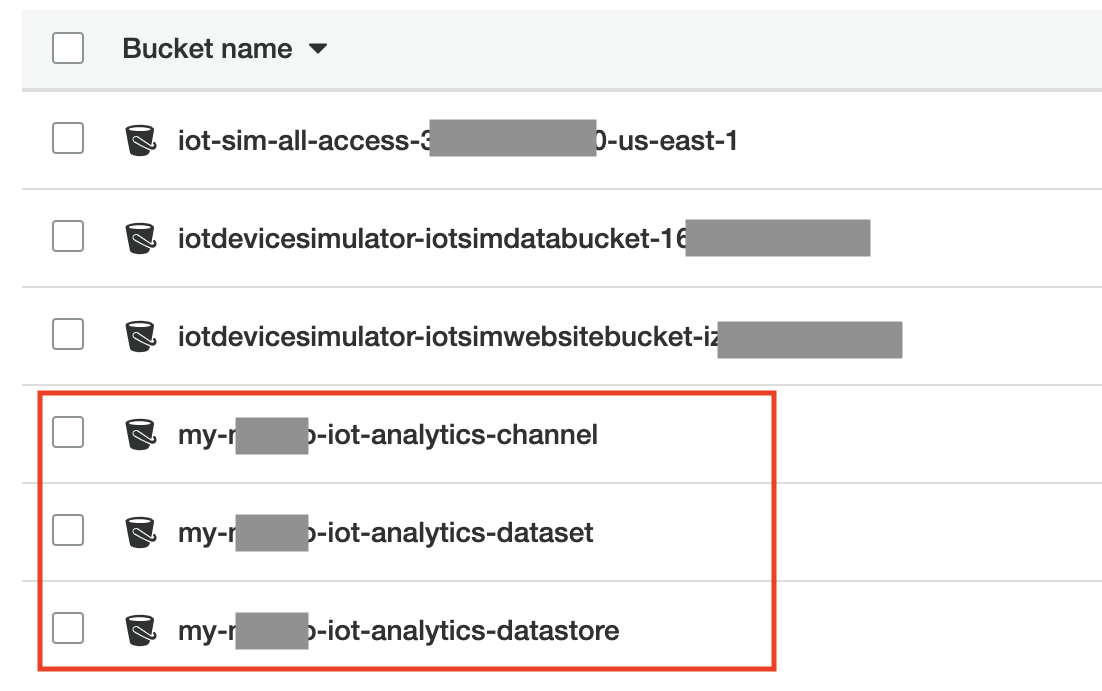
You will also need to give appropriate permissions to IoT Analytics to access your Data Store bucket.
-
Navigate to the S3 Management Console
-
Click on your data store bucket ending in ‘-datastore’.
-
Navigate to the Permissions tab.
-
Click on Edit next to the Bucket Policy section, and enter the following JSON policy (be sure to edit to include your S3 bucket name):
{
    "Version": "2012-10-17",
    "Id": "IoTADataStorePolicy",
    "Statement": [
        {
            "Sid": "IoTADataStorePolicyID",
            "Effect": "Allow",
            "Principal": {
                "Service": "iotanalytics.amazonaws.com"
            },
            "Action": [
                "s3:GetBucketLocation",
                "s3:GetObject",
                "s3:ListBucket",
                "s3:ListBucketMultipartUploads",
                "s3:ListMultipartUploadParts",
                "s3:AbortMultipartUpload",
                "s3:PutObject",
                "s3:DeleteObject"
            ],
            "Resource": [
                "arn:aws:s3:::<yourname>-iot-analytics-datastore",
                "arn:aws:s3:::<yourname>-iot-analytics-datastore/*"
            ]
        }
    ]
}
- Click Save Changes