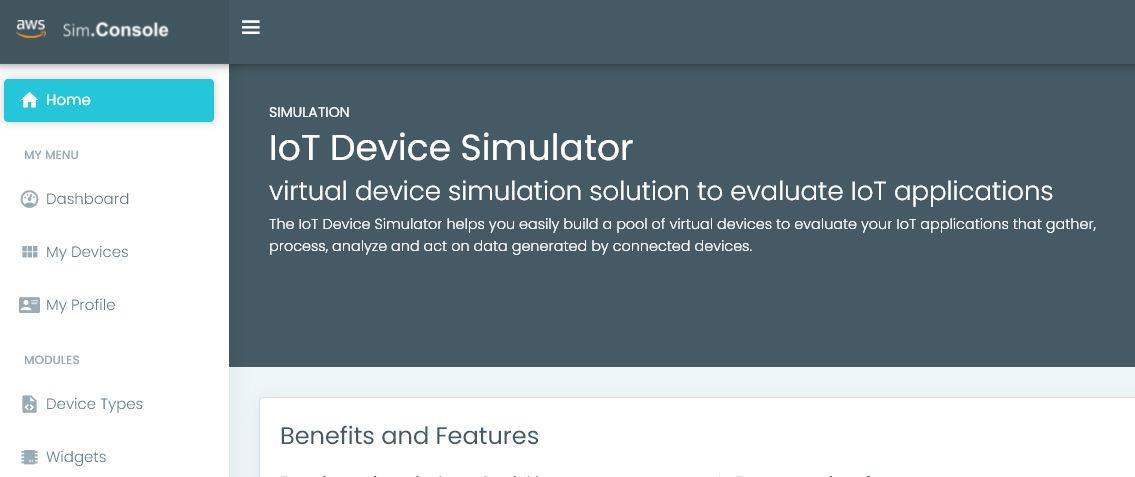
1.1 Access the Device Simulator
Getting started
Access the AWS IoT Device Simulator with Amazon Cognito and CloudFormation
The IoT Device Simulator allows you to simulate real world devices by creating device types and data schemas via a web interface and allowing them to connect to the AWS IoT message broker. Your AWS account should already have created the IoT Device Simulator using AWS CloudFormation.
Create a User in Cognito to access the Device Simulator
First we need to create a user so that you can access the device simulator.
-
Open the Amazon Cognito Console and click Manage User Pools. You should see a single user pool called iot-device-simulator-pool. Click this user pool.

-
Under General Settings, choose Users and groups and click Create User.

-
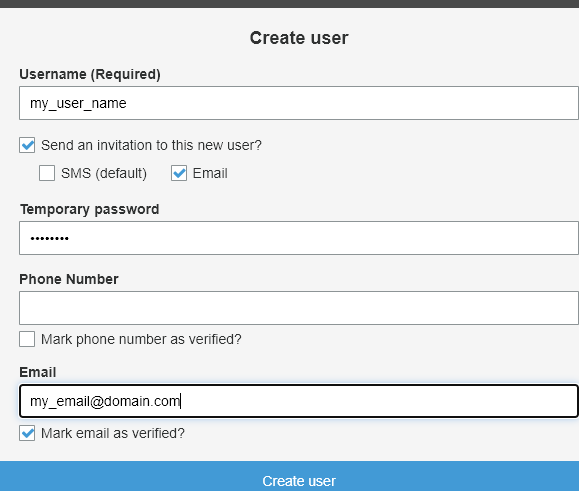
Enter the following information:
- Username: choose a user name that is easy to remember, no spaces!
- Send an invitation to this new user: Checked
- SMS (default): unchecked
- Email: Checked
- Temporary Password: Enter a password that is 8 characters long, with at least one uppercase, one lowercase and one number
- Phone Number: Leave Blank
- Mark Phone Number as Verified: Unchecked
- Email: Enter your email address
- Mark Email as Verified: Checked
Click Create User
-
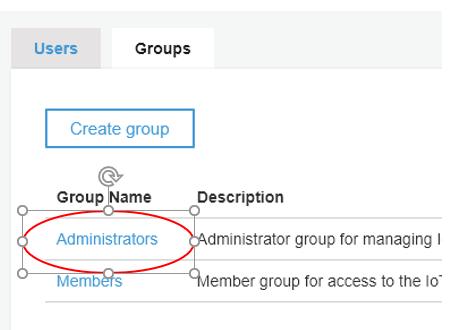
Select the Groups Tab. Click on the Administrators group.
-
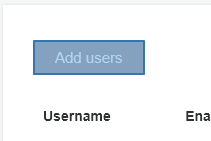
Click Add Users.
-
Select the + sign to add your username to the Administrators Group. You will receive a confirmation that the user was added to the Administrators Group.
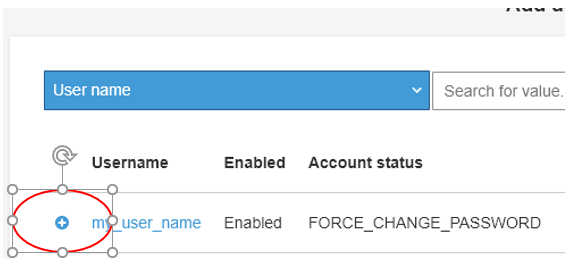
Access the Device Simulator
The IoT Device Simulator is a custom built web application that allows you to simulate IoT events continuously. You will use the user name you created earlier to login to the simulator web app.
-
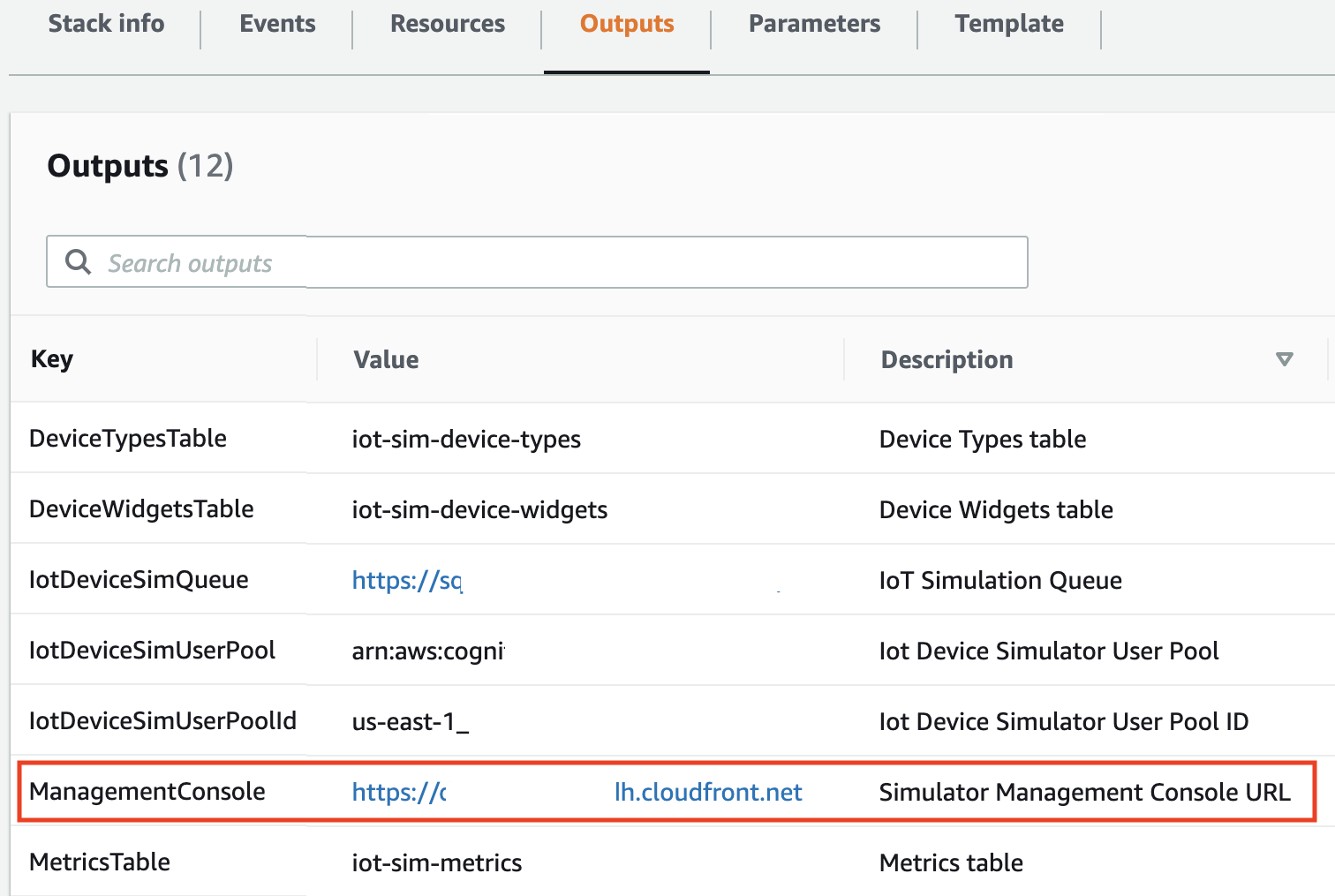
Open the Cloud Formation Console and click on the Stack that starts with mod-. Select the Outputs tab and you will see a link to the device simulator console.
-
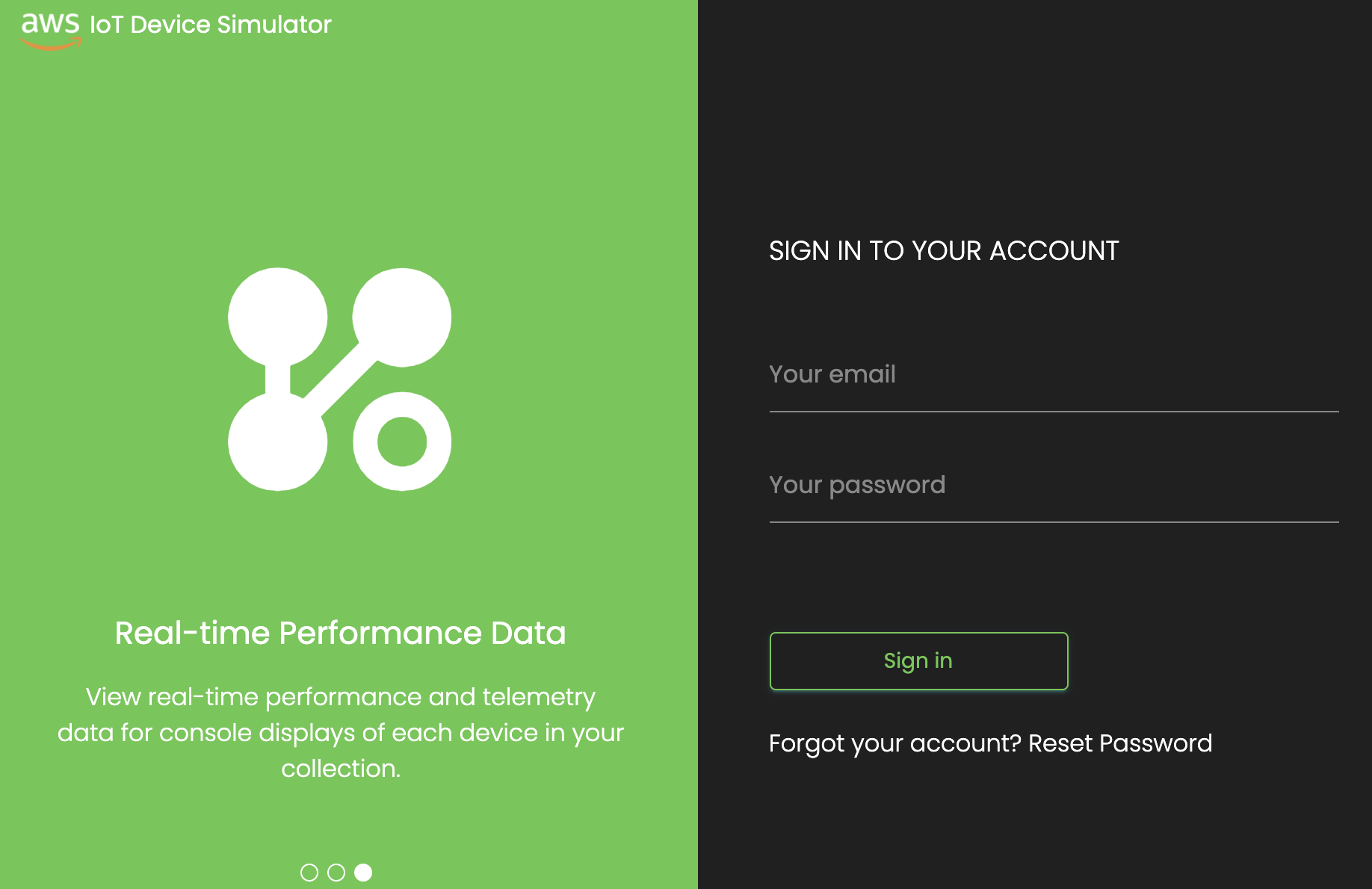
Click on the Device Simulator URL and login with the user name and password that you created earlier. NOTE: DO NOT use your email address unless you used that for your username as well!
-
You will be asked to change your password. Once you do, you will be redirected to the Device Simulator homepage.