1.2 IoT Device Simulation
Create the Simulated Device
Make sure you are logged into the IoT Device Simulator web application from the previous section.
You are going to create a virtual device fleet to simulate household electric power consumption. You can get more information about the data simulated in the UCI Machine Learning Repository.
- On the left menu, navigate to Modules -> Device Types -> Click Add Device Type
- Device Type Name:
smart-home - Data Topic:
smarthome/house1/energy/appliances - Data Transmission Duration:
7200000(120 minutes) - Data Transmission Interval:
3000(3 seconds) - Message Payload: Click Add Attribute and add the following attributes:
| Attribute Name | Data Type | Float Precision | Integer Minimum Value | Integer Maximum Value |
|---|---|---|---|---|
| sub_metering_1 | float | 2 | 10 | 100 |
| sub_metering_2 | float | 2 | 10 | 100 |
| sub_metering_3 | float | 2 | 10 | 25 |
| global_active_power | float | 2 | 1 | 8 |
| global_reactive_power | float | 2 | 5 | 35 |
| voltage | float | 2 | 10 | 250 |
| timestamp | UTC Timestamp (Choose Default) |
-
Once the sample message payload shows all the attributes above, click Save
-
Navigate to Modules -> Widgets -> Add Widget
- Select ‘smart-home’ as the Device Type
- Number of widgets: 1 -> Submit
We have now created a simulated smart home device which is collecting power usage data and publishing that data to AWS IoT Core on the ‘smarthome/house1/energy/appliances’ topic.
Verify that the data is being published to AWS IoT
Note: You will use the AWS console for the remainder of the workshop. Sign-in to the AWS console.
We will verify that the smart home device is configured and publishing data to the correct topic.
-
From the AWS console, choose the IoT Core service
-
Navigate to Test (On the left pane) and select MQTT Test Client
-
Under Subscribe to a Topic input the following:
-
Topic Filter:
smarthome/house1/energy/appliances -
Click Subscribe
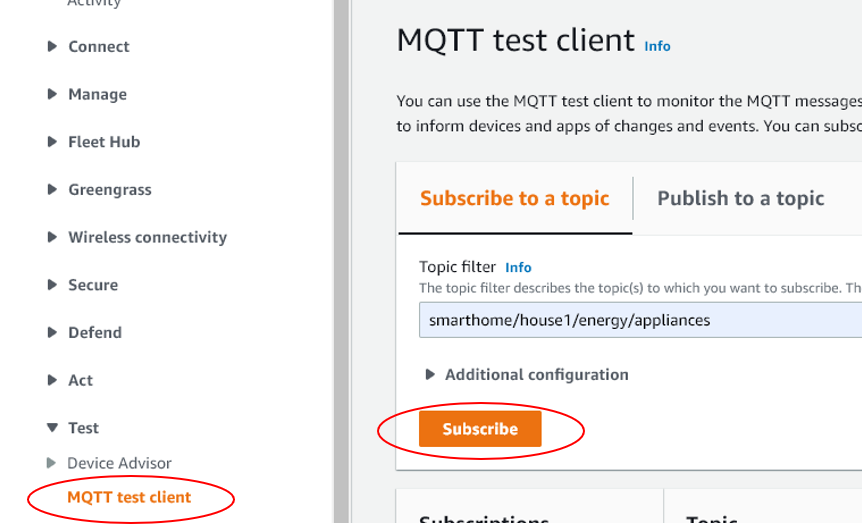
After a few seconds, you should see your simulated devices’ data that is published on the ‘smarthome/house1/energy/appliances’ MQTT topic.
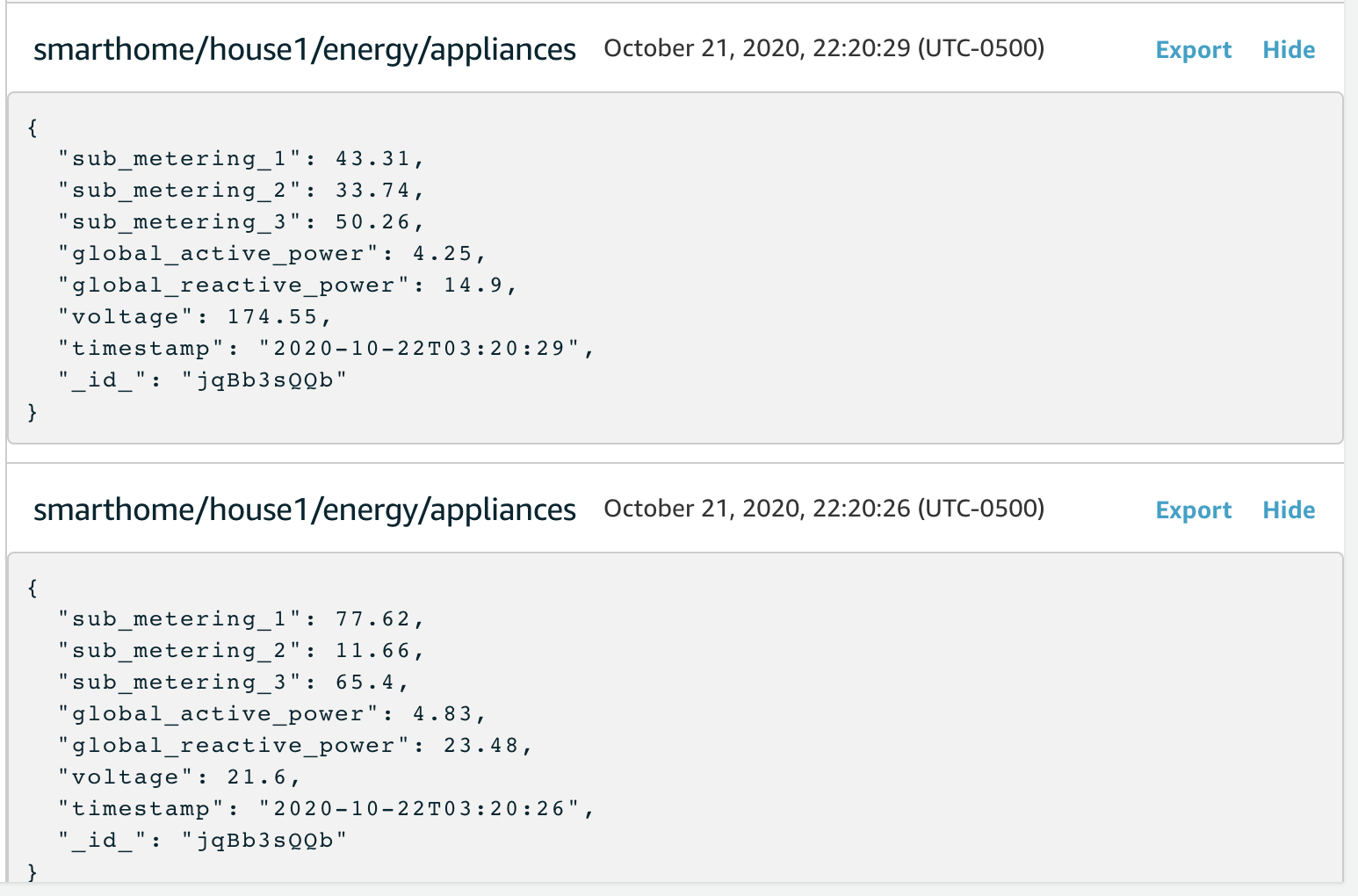
Your IoT smart home data are being simulated