2.4 IoT Analytics Pipeline
Create the IoT Analytics Pipeline
A pipeline consumes messages from a channel and enables you to process and filter the messages before storing them in a data store. To connect a channel to a data store, you create a pipeline.
- Navigate to the AWS IoT Analytics console.
- In the left navigation pane, navigate to Pipelines
- Create a new Pipeline:
- ID:
<yourname>_streampipeline - Pipeline source:
<yourname>_streamchannel - Pipeline output:
<yourname>_iotastore
- ID:
- Click Next
- IoT Analytics will automatically parse the data coming from your channel and list the attributes from your simulated device. By default, all messages are selected.
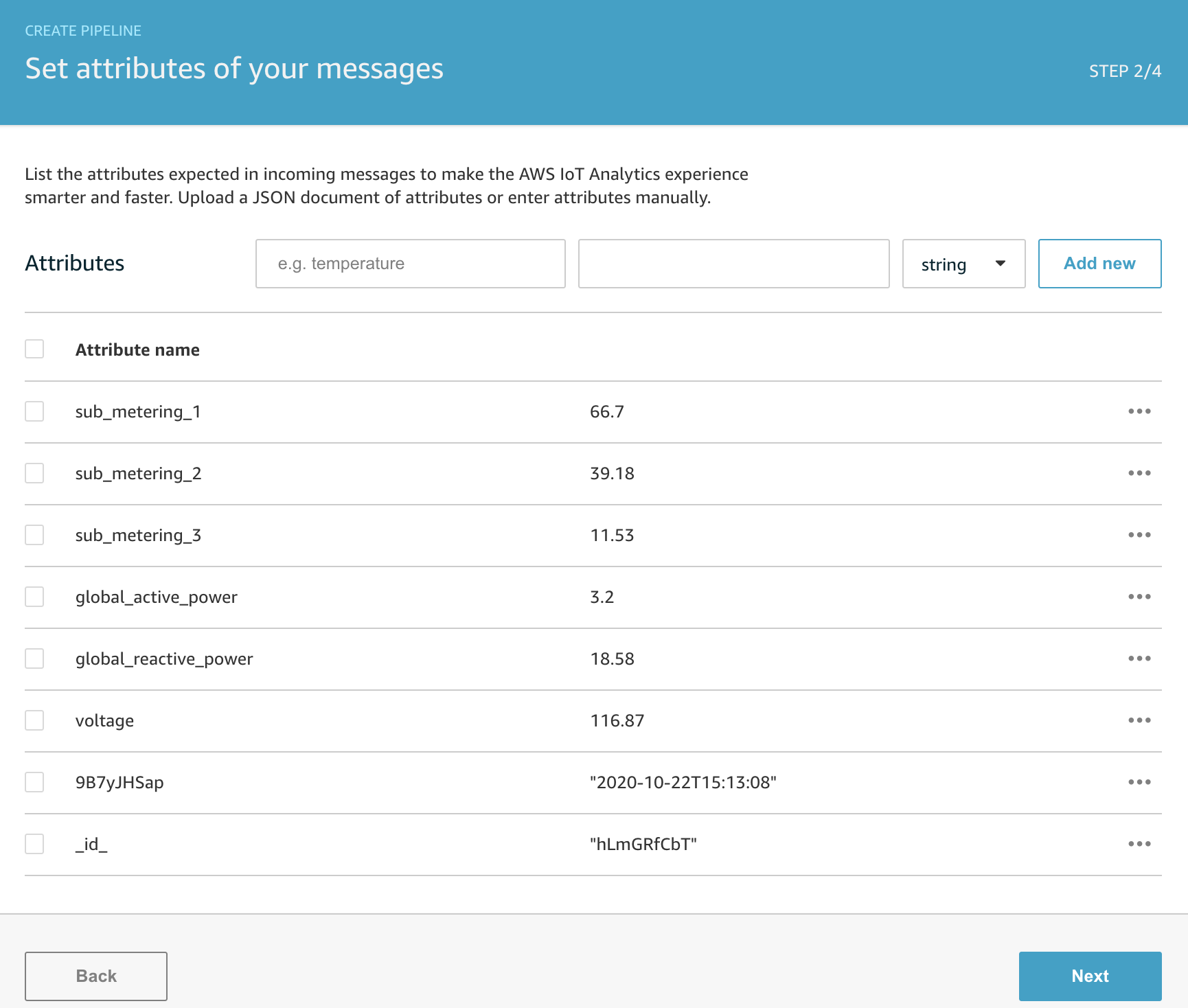
- Click Next
- Under ‘Enrich, transform, and filter messages’ you can transform the data in your pipeline, add, or remove attributes
- Under Add a Pipeline Activity, choose Calculate a message attribute as the type and select Add. For the calculate message attributes, enter:
- Attribute Name:
cost - Formula:
(sub_metering_1 + sub_metering_2 + sub_metering_3) * 1.5
- Attribute Name:
- Test your formula by clicking Update preview and the cost attribute will appear in the message payload below.
- Add a second activity by selecting Remove attributes from a message under Add a Pipeline Activity. Click Add. Select:
- Attribute Name: id. The id attribute is a unique identifier coming from the Device Simulator, but adds noise to the data set. Select Update Preview to ensure the id attribute is removed.
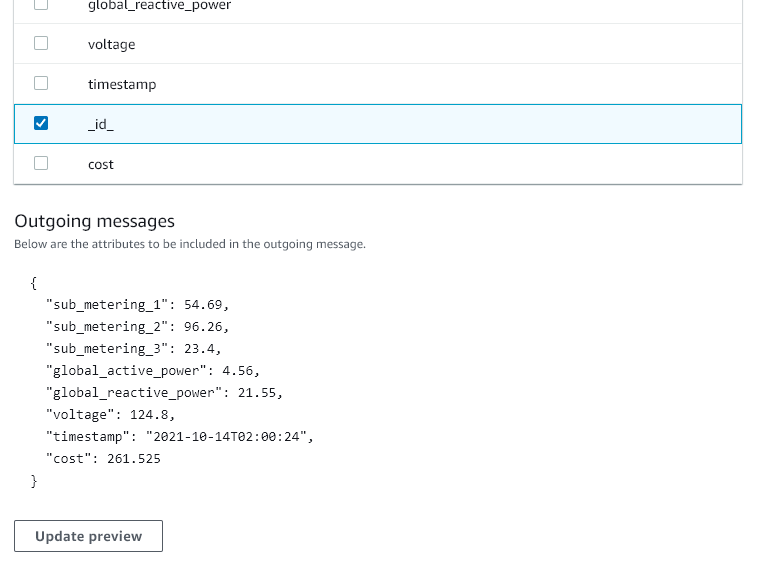
- Attribute Name: id. The id attribute is a unique identifier coming from the Device Simulator, but adds noise to the data set. Select Update Preview to ensure the id attribute is removed.
- Click ‘Next’
- Click Create Pipeline
Your IoT Analytics pipeline is now set up.